draw_tree includes a lightweight, interactive GUI built with Streamlit. It allows you to upload .ef or .efg files and adjust drawing parameters in real-time, previewing changes visually. You can run the GUI locally or used our hosted version on the Streamlit Community Cloud:
Visualize your game trees instantly. No installation required.

Running the GUI locally
To launch the GUI from your terminal, simply run:
draw_tree --guiThis will start a local Streamlit server and automatically open the application in your default web browser at http://localhost:8501/. From there, you can:
Upload game files
Tinker with formatting options (e.g., node size, layouts, colors, label backgrounds)
Download the resulting Tex, SVG, PDF, or PNG images, as well as the active rendering configuration.
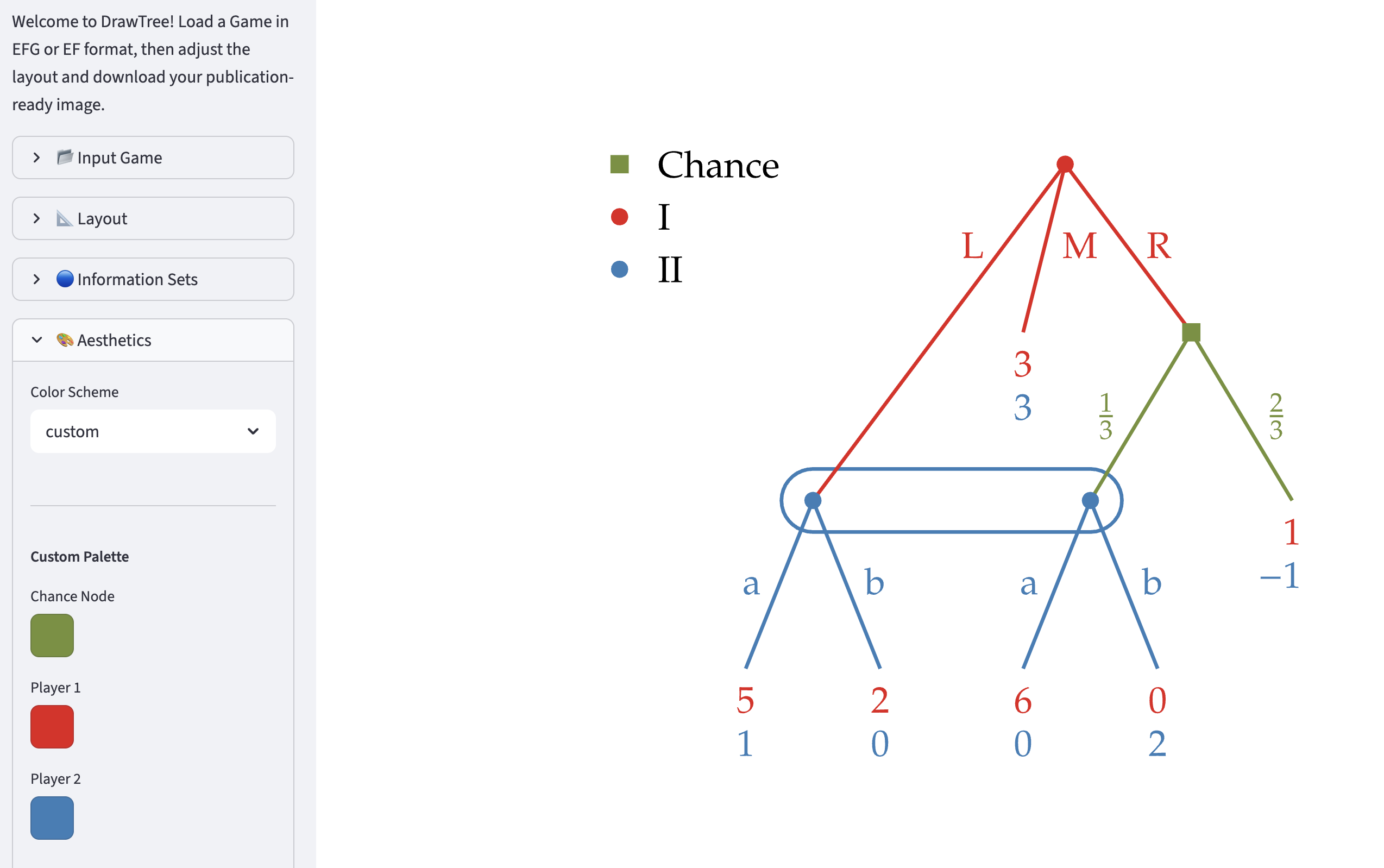
Exporting and Reusing Settings
When you adjust the visual styling of a game in the GUI, you can export these configuration parameters by clicking the Settings button in the Downloads pane. This downloads a YAML file containing all active styling options (e.g., color schemes, spacing, custom fonts, label offsets).
Integration with the Gambit Game Catalog
If you are a Gambit developer adding new games to the official game catalog, you can use the exported YAML settings to specify how these games should render by default. To do this:
Download the styling configuration file using the Settings button.
Copy the game’s configuration section from the downloaded YAML.
Paste or append the configuration under the appropriate key in the master settings file in the Gambit repository: build
_support /catalog /draw _tree _settings .yaml.
Once added, the game will automatically use your custom styles when displayed in the catalog.